

WhatsApp Web provides a powerful way to access your mobile WhatsApp account on a computer, allowing for faster typing and multitasking. This guide walks you through the setup and usage of WhatsApp Web, ensuring a smooth and secure experience across different devices.
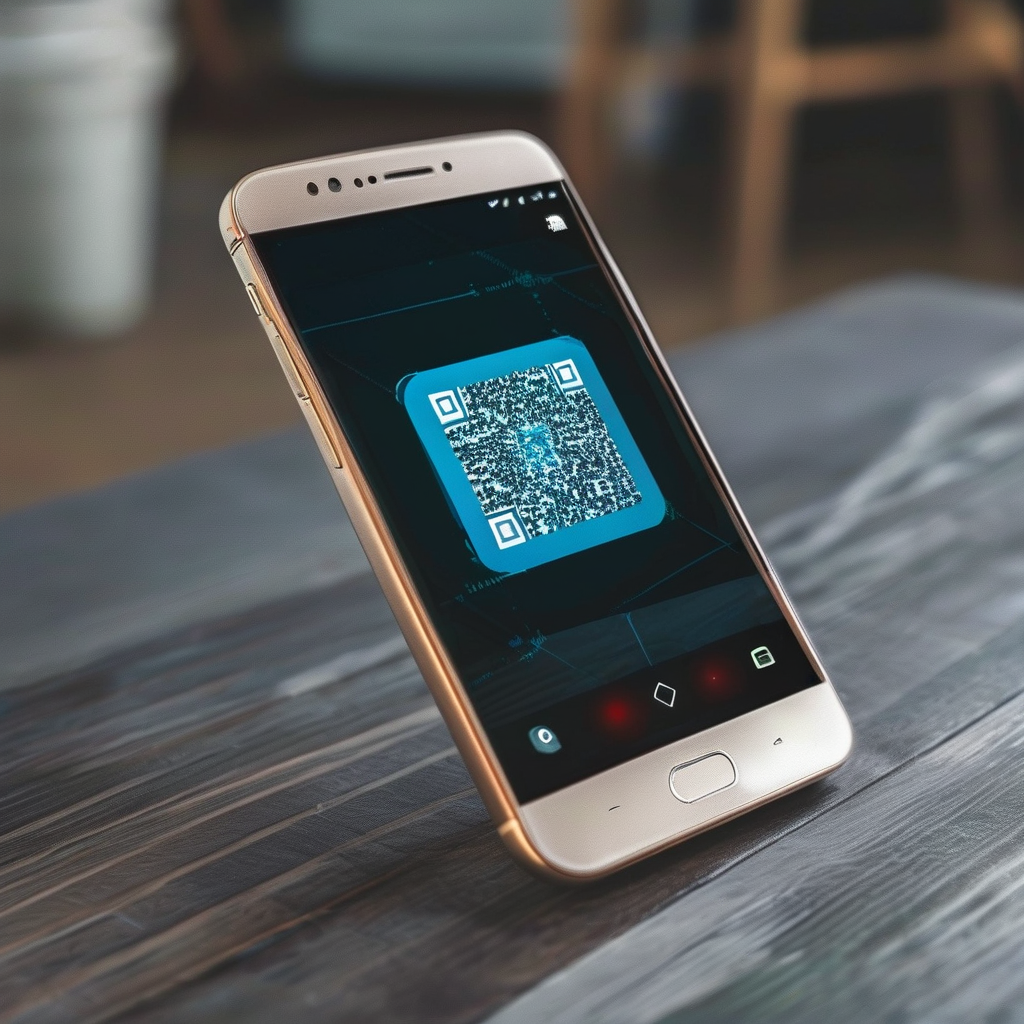
WhatsApp Web is an essential tool for users who frequently communicate on WhatsApp but also need to manage messages, group chats, and files on a larger screen. With the ability to access WhatsApp from a computer, users can enjoy enhanced productivity and convenience. This guide will walk you through the setup and usage of WhatsApp Web on your PC, laptop, or tablet, ensuring a smooth and secure experience.
What Is WhatsApp Web?
WhatsApp Web is a desktop version of the WhatsApp messaging app that allows users to access their WhatsApp account through a web browser on a computer. It provides a near-identical interface to the mobile app, enabling users to send and receive messages, make calls, and manage groups and files without needing to switch between devices.
Getting Started with WhatsApp Web
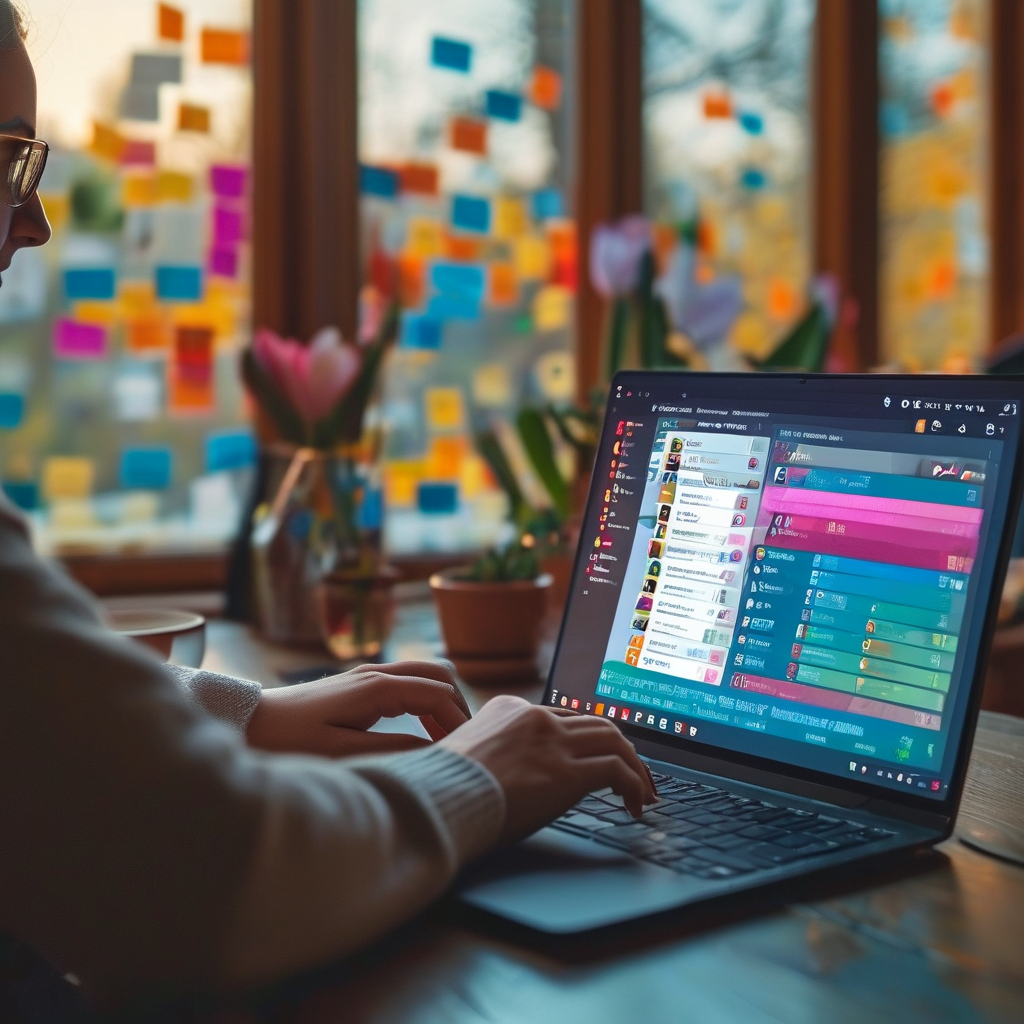
To use WhatsApp Web, you need a smartphone running Android or iOS and the WhatsApp app installed. Here’s how to get started:
- Open WhatsApp on your smartphone and go to the Settings menu.
- Select “WhatsApp Web” and then “Scan QR Code”.
- On your computer, open a web browser and navigate to WhatsApp Web.
- A QR code will appear on your screen; use the camera on your smartphone to scan it.
- Once the QR code is scanned, your WhatsApp account will be linked to the web version.
This process is straightforward and ensures that your desktop session is instantly connected to your mobile account.
Using WhatsApp Web on a PC
Once you’ve successfully linked your WhatsApp account to the web version, you can start using it on your computer. Here are some key features and tips:
- Message Typing: Use the keyboard to type messages quickly, which is especially useful for long conversations or group chats.
- File Sharing: You can easily share files, such as images, videos, and documents, from your computer to your contacts.
- Multitasking: Manage WhatsApp alongside other applications, making it ideal for work or study scenarios.
- Call Support: WhatsApp Web supports voice and video calls, though it requires a stable internet connection.
How to Manage WhatsApp Web on Different Devices
WhatsApp Web can be accessed on any device that supports a web browser, including PCs, laptops, and tablets. Here’s how to manage it effectively:
- PC and Laptop: Open the web browser and go to WhatsApp Web. The interface is optimized for desktop use, making it easy to navigate and manage messages.
- Tablet: While the interface may be slightly different from a laptop, the core functionality remains the same. Use the touchscreen to interact with messages and files.
It’s important to note that the experience on a tablet may be less intuitive compared to a PC or laptop, so it’s recommended to use a larger screen for better usability.
Security and Privacy Considerations
When using WhatsApp Web, it’s crucial to maintain security and privacy. Here are some key points to keep in mind:
- QR Code Scanning: Always scan the QR code using the WhatsApp app on your smartphone to ensure a secure connection.
- Session Management: If you close the browser or stop using WhatsApp Web, your session will end automatically. This helps prevent unauthorized access.
- Two-Factor Authentication: Enable two-factor authentication on your mobile WhatsApp to add an extra layer of security.
These measures help protect your account from potential threats and ensure that your conversations remain private.
Advanced Features and Tips
WhatsApp Web offers several advanced features that can enhance your messaging experience:
- Keyboard Shortcuts: Use keyboard shortcuts to navigate through messages and perform actions more efficiently. For example, Ctrl + Enter (Windows) or Cmd + Enter (Mac) sends a message.
- Customization: While the interface is not highly customizable, you can adjust the size of the chat window and use extensions for additional functionality.
- File Management: You can drag and drop files from your computer into the chat window, making it easy to share large files without using mobile data.
These tips can help you make the most of WhatsApp Web and improve your overall messaging experience.
Common Issues and Troubleshooting
Despite its convenience, WhatsApp Web can sometimes encounter issues. Here are some common problems and solutions:
- Connection Issues: If you experience connection problems, check your internet connection and ensure that WhatsApp is running on your smartphone.
- QR Code Not Scanning: Make sure your smartphone is in close proximity to the computer and that the camera is properly aligned with the QR code.
- Session Timeout: If your session times out, simply scan the QR code again to reconnect.
These troubleshooting steps can help you resolve common issues and keep your WhatsApp Web experience smooth.
Best Practices for Using WhatsApp Web
To ensure the best experience with WhatsApp Web, follow these best practices:
- Keep Your Mobile App Updated: Regularly update the WhatsApp app on your smartphone to ensure compatibility and security.
- Use a Stable Internet Connection: A stable internet connection is essential for a seamless experience, especially when making calls or sharing files.
- Avoid Using Multiple Devices: Using WhatsApp Web on multiple devices simultaneously can lead to conflicts and data loss. Stick to one device at a time.
By following these best practices, you can maximize the benefits of WhatsApp Web and avoid common pitfalls.
Conclusion
WhatsApp Web is a valuable tool for users who want to access their WhatsApp account on a computer. It offers a seamless experience with features such as faster typing, file sharing, and multitasking. By following the steps outlined in this guide and keeping your mobile app updated, you can enjoy a secure and efficient messaging experience across multiple devices.
Keywords: WhatsApp Web, WhatsApp on PC, WhatsApp for Laptop, WhatsApp for Tablet, message typing, file sharing, multitasking, call support, security, privacy, QR code scanning, session management, two-factor authentication, keyboard shortcuts, customization, stable internet connection, best practices, troubleshooting, connectivity issues, device compatibility, user experience