

WhatsApp Web is a convenient way to access WhatsApp on your computer, offering a seamless experience for sending messages, making calls, and managing chats from your desktop. This guide provides step-by-step instructions on setting up WhatsApp Web and using its features effectively.
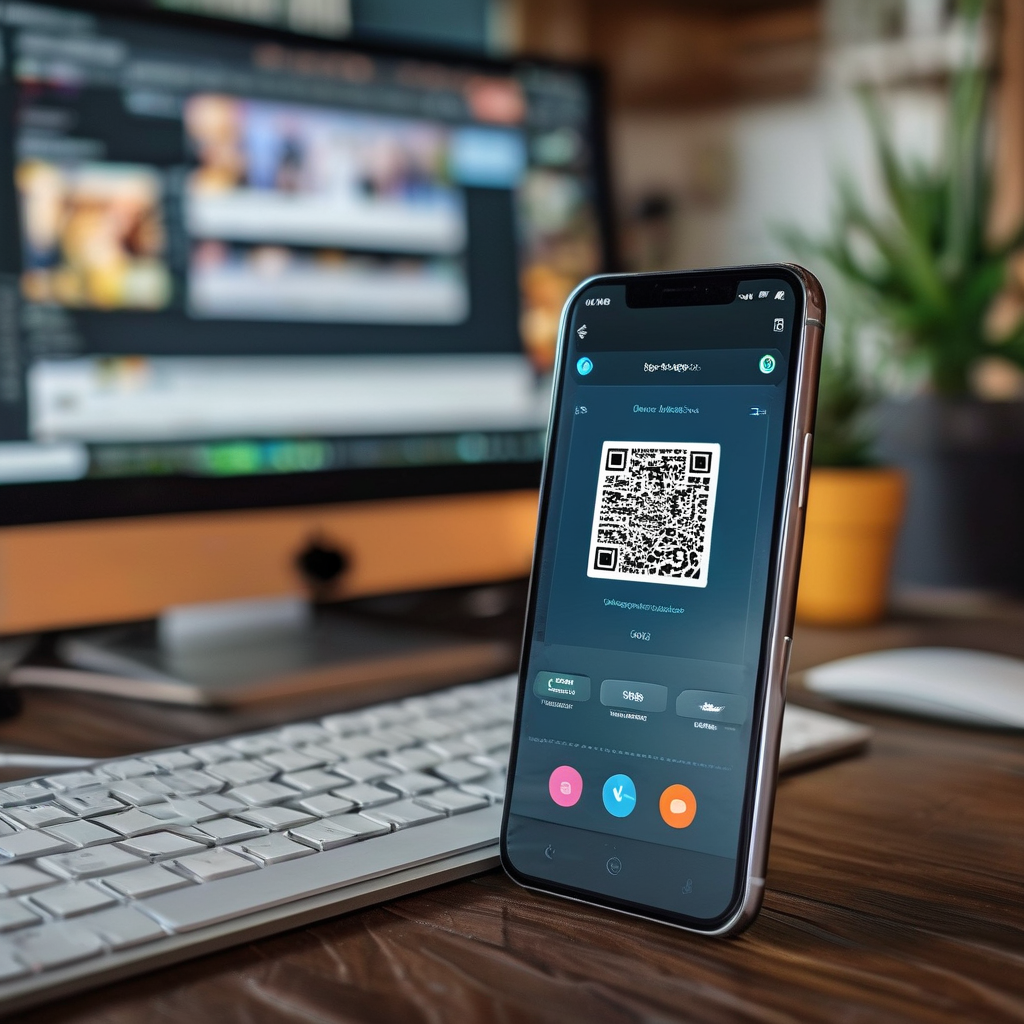
WhatsApp Web is a powerful tool that allows users to access WhatsApp directly from their web browser, eliminating the need to switch between devices. It is particularly useful for those who want to manage conversations while working on their computer. Setting up WhatsApp Web is straightforward, and it can significantly enhance productivity and convenience.
How to Set Up WhatsApp Web
To use WhatsApp Web, you need a smartphone running Android or iOS. The process involves scanning a QR code on your computer with your phone. Start by opening the WhatsApp Web interface in your browser. This can be done by visiting the official WhatsApp Web website or by opening WhatsApp on your phone and selecting the “WhatsApp Web” option.
Once on the web interface, you will see a QR code. Open the WhatsApp app on your phone and navigate to the “WhatsApp Web” section. Use the camera feature to scan the QR code. This will connect your phone to the web version of WhatsApp. If the connection is successful, you will see your chat history and all your contacts on the web app.
Using WhatsApp Web for Messaging
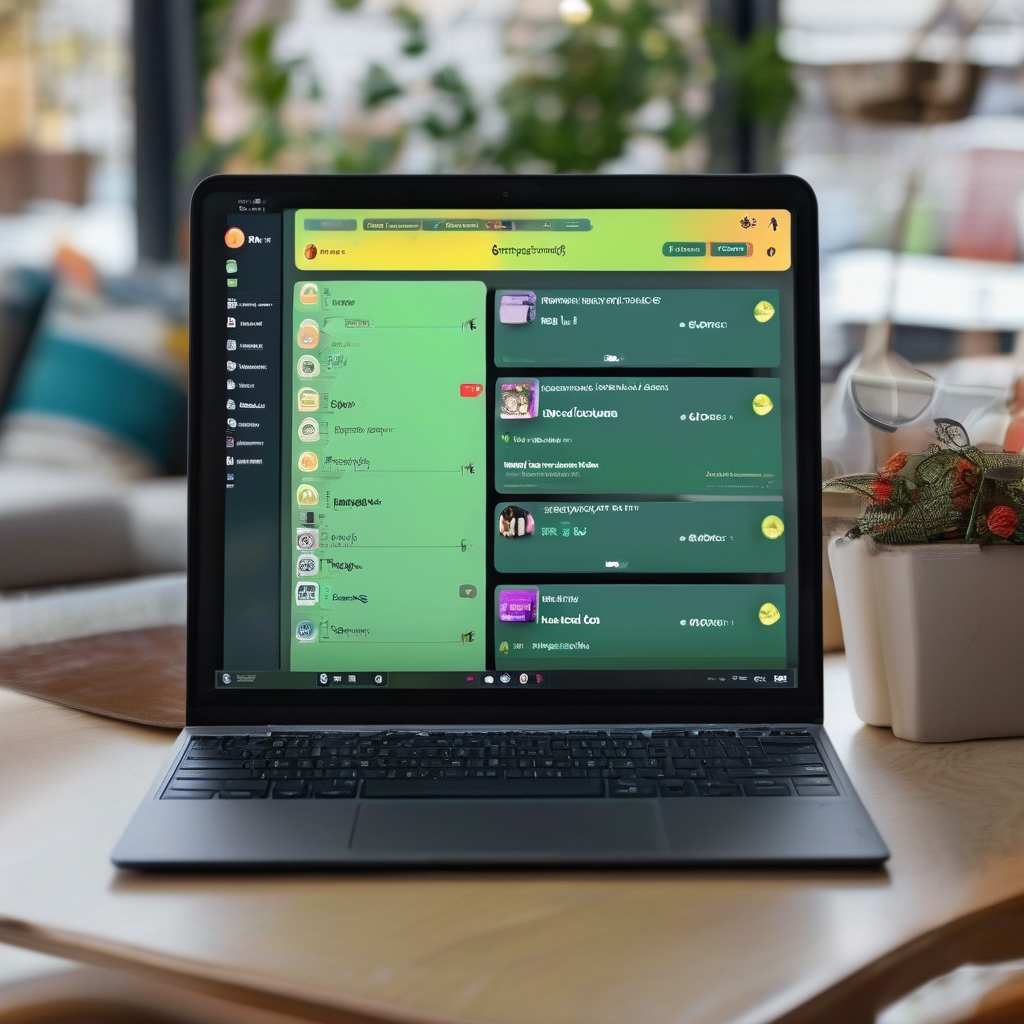
After the connection is established, you can start messaging from your computer. The interface is similar to the mobile app, allowing you to send text, images, videos, and documents. However, the web version offers additional features such as the ability to use a keyboard for typing messages and easier access to your chat history.
One of the key advantages of WhatsApp Web is the ability to use the web version for group chats. You can easily manage multiple conversations and respond to messages without switching to your phone. The web app also supports voice and video calls, making it a versatile tool for communication.
Managing Contacts and Chats on WhatsApp Web
WhatsApp Web allows you to manage your contacts and chats effectively. You can search for contacts, view their status, and even send messages to them from your computer. The web version also provides a more organized view of your chats, making it easier to find specific conversations.
To manage your contacts, you can use the search bar at the top of the web interface. This will help you quickly locate the person you are looking for. Additionally, you can pin important chats to the top of the list for easy access. If you need to delete a chat, you can do so directly from the web app, which is a convenient feature for maintaining a clean inbox.
Sending Multimedia and Files
WhatsApp Web enables you to send a variety of multimedia content and files. This includes images, videos, documents, and audio files. To send an image, simply click on the camera icon in the chat window and select the image from your computer. For videos, you can use the same method by selecting a video file.
Sending documents is also straightforward. Click on the paperclip icon, choose the file you want to send, and it will be sent to the recipient. This feature is particularly useful for sharing large files that may be difficult to send via mobile. The web app also allows you to send audio files, which can be useful for quick voice messages.
Customizing Your Web Experience
WhatsApp Web offers several customization options to enhance your user experience. You can change the appearance of the web app, including the theme and font size. This can make it more comfortable to use, especially if you have visual impairments or prefer a different look.
Another customization feature is the ability to use a desktop notification system. This will alert you when you receive a new message, making it easier to stay on top of your conversations. You can also set up a keyboard shortcut to quickly access WhatsApp Web, which is especially useful for frequent users.

Troubleshooting Common Issues
If you encounter any issues while using WhatsApp Web, there are a few common solutions. First, ensure that your phone and computer are connected to the same Wi-Fi network. This is essential for the web app to function correctly. If you are having trouble scanning the QR code, check if the camera is working properly and ensure that the QR code is clearly visible.
Another common issue is the web app not loading properly. This can be resolved by clearing your browser cache and cookies. Additionally, make sure that your WhatsApp app is up to date, as outdated versions may cause compatibility issues. If you continue to experience problems, try restarting your computer or using a different browser.
Security and Privacy Considerations
Security and privacy are important when using WhatsApp Web. The web app uses end-to-end encryption, ensuring that your messages are secure. However, it is crucial to keep your phone and computer protected with strong passwords and regular updates. Avoid using public Wi-Fi networks when accessing WhatsApp Web, as they can pose a security risk.
You should also be cautious about sharing your phone’s QR code with others. If someone scans it, they will be able to access your WhatsApp account on their device. It is recommended to use a separate QR code for different devices and to log out of the web app when you are finished using it.
Advanced Features and Tips
WhatsApp Web has several advanced features that can enhance your communication experience. One of these is the ability to use the web app for group management. You can easily add or remove members from a group chat, which is particularly useful for coordinating with friends or colleagues.
Another advanced feature is the ability to use WhatsApp Web for business purposes. If you are a business owner, you can use the web app to manage customer interactions and respond to inquiries more efficiently. This can help streamline your operations and improve customer service.
Additionally, you can use WhatsApp Web to send messages to multiple contacts at once. This is useful for sending out announcements or updates to a group of people. The web app also supports the ability to send messages to contacts who are not currently online, which can be helpful for scheduling messages.
Conclusion
WhatsApp Web is a valuable tool that offers a convenient way to access WhatsApp on your computer. By following the steps outlined in this guide, you can set up and use the web app effectively. Whether you are managing personal conversations or coordinating business activities, WhatsApp Web provides a range of features that can enhance your communication experience.
It is important to stay updated with the latest features and changes to WhatsApp Web, as the app is continuously evolving. By taking advantage of these updates, you can ensure that you are using the most efficient and secure method for accessing WhatsApp on your computer.
Keywords: WhatsApp Web, QR code, Android phone, messaging, multimedia, security, privacy, customization, group chats, productivity