
Windows 11 is a powerful operating system, but audio issues can be frustrating. This guide provides a step-by-step approach to troubleshooting sound problems, including checking system settings, updating drivers, and ensuring hardware compatibility. Whether you’re a gamer or a casual user, these tips will help you restore sound functionality effectively.
Understanding Common Sound Issues in Windows 11
Sound problems in Windows 11 often stem from driver conflicts, volume settings, or hardware malfunctions. Before diving into fixes, it’s important to identify the root cause. Common symptoms include no sound output, distorted audio, or low volume levels. These issues can affect gameplay, streaming, and everyday use, making sound restoration a priority.
Step 1: Check Volume Settings
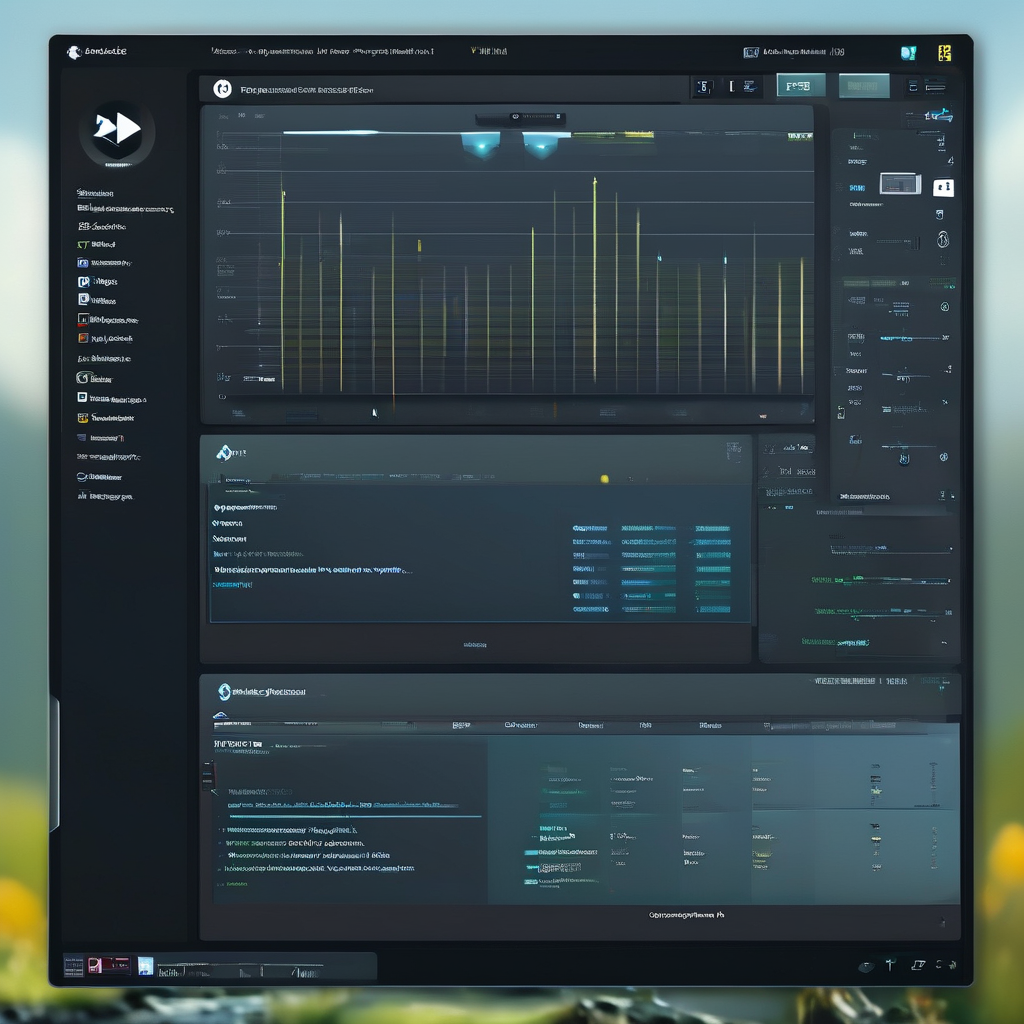
The first thing to do is ensure that your volume is not muted or set to zero. Navigate to the Taskbar and click the speaker icon to open the volume mixer. From there, you can adjust the volume for all applications and check if the master volume is enabled. Additionally, look for the mute toggle to confirm it is not activated.
Step 2: Verify Sound Output Device
Make sure that the correct sound output device is selected. Right-click the speaker icon and choose Sounds. In the Playback tab, check if your headphones or speakers are listed and set as the default device. If not, right-click the device and select Set as Default. This ensures that Windows is sending audio to the intended hardware.
Step 3: Update Audio Drivers
Outdated or corrupted audio drivers can lead to sound problems. To update your audio drivers, press Windows + X and select Device Manager. Expand the Sound, video and game controllers section and right-click your audio device (e.g., Realtek High Definition Audio). Choose Update driver and follow the prompts to install the latest version. This step helps resolve compatibility issues and improves overall audio performance.
Step 4: Reinstall the Audio Driver
If updating the driver doesn’t resolve the issue, consider reinstalling it. In Device Manager, right-click your audio device and select Uninstall device. Confirm the action and allow Windows to scan for hardware changes. Once the device is uninstalled, restart your computer to let the system automatically reinstall the driver. This process can fix driver corruption and restore sound functionality.
Step 5: Test with Different Audio Devices
Sometimes, the issue lies with the audio hardware itself. Try using different speakers or headphones to see if sound works. If it does, the problem may be with your current audio device or its connection. Ensure that all cables are securely connected and that the hardware is functioning properly. This helps isolate whether the problem is software or hardware-related.
Step 6: Check for System Updates
Windows 11 frequently releases updates that include bug fixes and performance improvements. Go to Settings > Windows Update and check for available updates. Install any pending updates, especially those related to audio and multimedia features. This can resolve compatibility issues with newer applications or games that rely on updated audio drivers.
Step 7: Test with a New User Profile
A corrupted user profile can cause unexpected audio issues. To test this, create a new user account and log in. If sound works in the new profile, the problem likely resides in your original user profile. You can then repair or reset the original profile to fix the issue.
Step 8: Run the Audio Troubleshooter
Windows 11 includes an audio troubleshooter that can automatically detect and fix common sound issues. Go to Settings > System > Sound > Troubleshoot sound problems and run the troubleshooter. It will guide you through diagnostic steps and suggest solutions, which can save time in manually identifying the problem.
Step 9: Adjust Audio Settings in Games
For gaming or media playback, some applications have their own audio settings that can override system defaults. Check the settings menu of your game or media player to ensure that sound is enabled and that the output device is correctly selected. Some games also allow you to adjust volume levels, equalizer settings, and surround sound configurations for better audio experience.
Step 10: Use Third-Party Audio Tools
In some cases, third-party audio software can help resolve stubborn sound issues. Tools like Realtek HD Audio Manager or Windows Sound Settings offer more granular control over audio settings and device configurations. These tools can also help optimize audio performance for gaming and multimedia.
Step 11: Check for Hardware Compatibility
Ensure that your audio hardware is compatible with Windows 11. Some older devices may not support the latest audio features or may require specific drivers. If you’re using a USB audio device, try plugging it into another port to rule out connection issues. Additionally, verify that the device is recognized in Device Manager and that it’s functioning correctly.
Step 12: Reset Windows Audio Settings
If all else fails, reset Windows audio settings to their default configuration. Go to Settings > System > Sound and scroll down to the Reset option. Click Reset and follow the prompts to restore default audio settings. This can resolve configuration errors that might be interfering with sound output.
Step 13: Check for Conflicting Software
Some software programs can interfere with audio functionality by overriding system settings or blocking audio output. Close any background applications that might be using audio resources, such as video conferencing tools, streaming software, or other multimedia players. If the issue persists, try booting into Safe Mode to see if any third-party software is causing the problem.
Step 14: Test with a Different Operating System
If you’re still unable to resolve the sound issue, consider testing your hardware on a different operating system, such as Windows 10 or a Linux distribution. This helps determine whether the problem is specific to Windows 11 or if it’s a hardware or driver issue that affects all systems. If sound works on another OS, it’s likely a Windows 11 configuration or driver compatibility problem.
Step 15: Contact Manufacturer Support
If none of the above steps work, reach out to the manufacturer of your audio hardware for support. They may have specific drivers or solutions for Windows 11 compatibility. For example, Realtek and Creative provide driver download pages and support forums where users can report and resolve sound issues.
Step 16: Consider Hardware Replacement
In rare cases, hardware failure may be the cause of sound issues. If your speakers or headphones are not working on any device, they may be defective. Consider replacing the hardware with a known working device to rule out physical damage or component failure. This is especially important for gaming setups where high-quality audio is crucial for immersion and performance.
Step 17: Use Built-in Audio Test Tools
Windows 11 includes built-in audio test tools that can help you diagnose sound issues. One such tool is the Windows Audio Troubleshooter, which can automatically detect and fix problems. Additionally, you can use the Sound window to play a test tone and verify that your audio device is functioning correctly.
Step 18: Adjust Equalizer Settings
For gaming and media playback, equalizer settings can significantly impact audio quality and volume levels. Open the Sound settings and navigate to the Enhancements tab. Adjust the equalizer settings to suit your listening preferences and device capabilities. This can enhance audio clarity and immersion in games and media.
Step 19: Monitor System Resources
Ensure that your system resources are not being overloaded by background processes. High CPU or RAM usage can cause audio stuttering or no sound at all. Use Task Manager to check for resource-intensive applications and close them if necessary. This helps maintain smooth audio performance and system stability.
Step 20: Reinstall the Operating System
As a last resort, consider reinstalling Windows 11 if all other troubleshooting steps fail. This can resolve deep-seated configuration issues and software conflicts that may be affecting audio functionality. However, ensure that you back up your data before proceeding with a reinstallation.
Summary of Key Steps
To summarize, the most effective ways to get sound with Windows 11 include:
- Checking volume settings and output devices
- Updating or reinstalling audio drivers
- Running the audio troubleshooter
- Testing with different hardware and software configurations
- Resetting Windows audio settings
- Contacting manufacturer support for specific issues
- Monitoring system resources and background processes
- Reinstalling the operating system if necessary
These steps provide a comprehensive approach to troubleshooting sound issues in Windows 11, ensuring that users can restore audio functionality and enjoy their gaming and multimedia experiences without interruption.
Conclusion: Ensuring a Seamless Audio Experience
A reliable audio system is essential for gaming, streaming, and multimedia consumption. By following the steps outlined above, users can diagnose and resolve sound issues effectively. Whether you’re a gamer or a casual user, ensuring sound functionality in Windows 11 enhances overall user experience and system performance. Remember to stay updated with driver releases and system updates, as this can prevent future audio problems and improve compatibility with newer software and hardware.
Keywords
Windows 11, audio driver, sound settings, volume control, device manager, troubleshooter, gaming audio, multimedia playback, hardware compatibility, system update, audio output, equalizer settings, user profile, Safe Mode, manufacturer support, audio test tools