

WhatsApp Web is a browser-based version of WhatsApp that allows users to send and receive messages on desktop or laptop computers. This guide provides a detailed walkthrough on setting up, using, and troubleshooting WhatsApp Web, making it a valuable tool for both casual and power users.
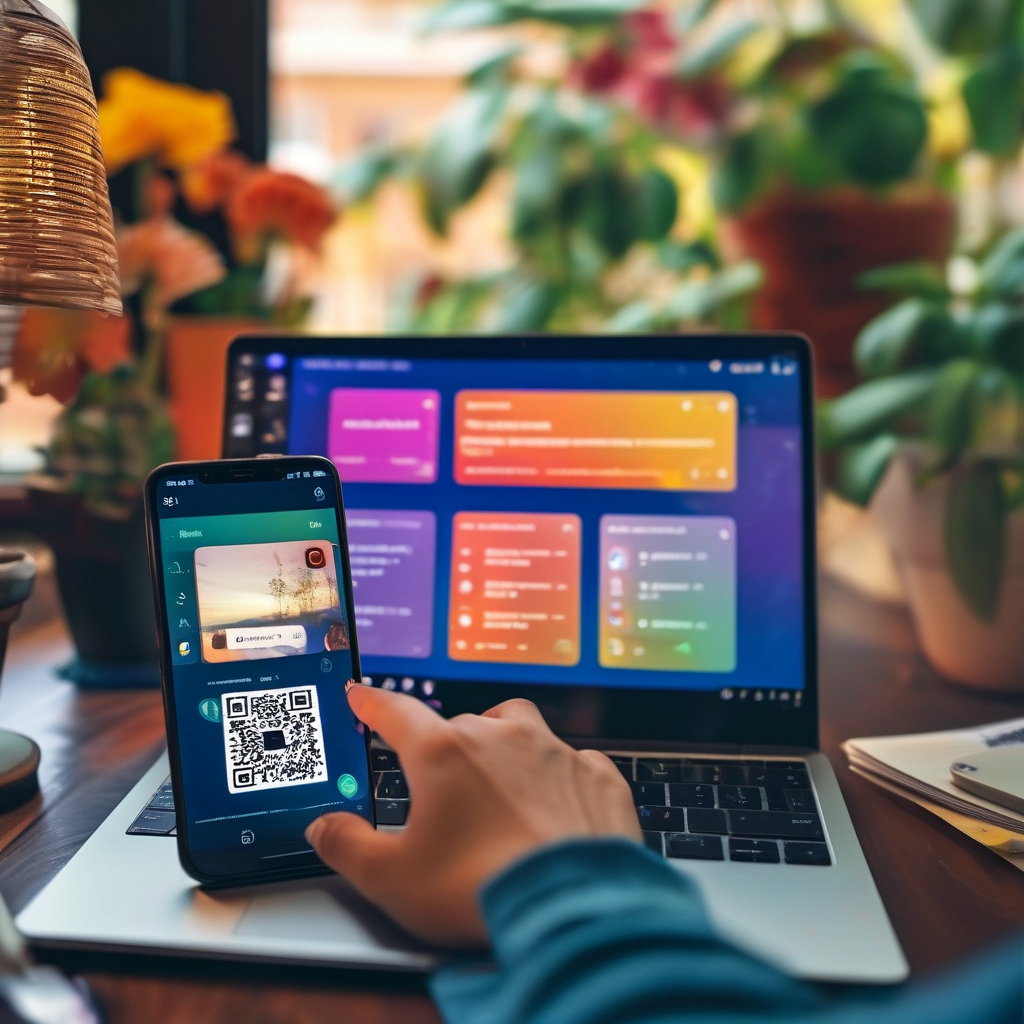
WhatsApp Web is a convenient extension of the WhatsApp mobile application that enables users to communicate from their desktop environments. It is especially useful for those who spend a lot of time on computers and want to stay connected without constantly checking their phones. The browser-based version not only mirrors the mobile experience but also offers additional functionalities such as quick access to group chats, file sharing, and message management. However, it is important to understand the setup process, key features, and limitations to fully utilize WhatsApp Web.
Setting Up WhatsApp Web
To begin using WhatsApp Web, you need to have the WhatsApp application installed on your mobile device. Once it’s set up, you can access WhatsApp Web through a web browser. Open the WhatsApp Web website in your browser and scan the QR code displayed on the screen using your mobile device. This process will link your desktop browser to your WhatsApp account, allowing synchronization of messages and contacts.
It is crucial to ensure that your mobile device is connected to the internet and that WhatsApp is running in the foreground during the setup. Any interruption could result in a failed connection. After scanning the QR code, you should see a confirmation message on your phone indicating that the desktop version has been successfully linked.
Key Features of WhatsApp Web
WhatsApp Web offers a range of features that enhance the user experience. One of the most notable is the ability to view and manage messages directly from your computer. This is particularly useful for users who need to check messages while working or multitasking. Additionally, file sharing is more efficient on desktops, allowing for the easy transfer of large files or documents.
Another significant feature is group chat management, which enables users to add or remove members with ease. This simplifies communication in group settings and makes it more efficient for team discussions or family groups. Furthermore, keyboard shortcuts can be customized to suit your workflow, improving productivity and speed.
Lastly, the desktop interface allows for a more organized view of conversations. You can pin important chats to the top, sort messages by date or contact, and search for specific messages or contacts quickly. These features collectively make WhatsApp Web a valuable addition to any user’s communication toolkit.
Limitations of WhatsApp Web
Despite its advantages, WhatsApp Web has several limitations that users should be aware of. Firstly, it requires a mobile device to function. Without the mobile app running, the desktop version will not operate, and you will lose access to your messages and contacts. This dependency means that users must always keep their phone connected to the internet and in the foreground when using WhatsApp Web.
Secondly, there are restrictions on certain features. For example, voice and video calls can only be made from the mobile application, as the desktop version does not support these functionalities. Similarly, sending multimedia messages like images or videos may be limited in terms of size or resolution.
Thirdly, security concerns are a major drawback. Since WhatsApp Web operates through a web browser, there is a potential risk of unauthorized access if the QR code is scanned by someone else. It is essential to keep your mobile device secure and avoid sharing the QR code with others. Additionally, session management is important; if you log out from the web version, you should also ensure that you log out from your mobile app to maintain privacy.
Troubleshooting Tips for WhatsApp Web
If you encounter issues while using WhatsApp Web, there are several troubleshooting steps you can take. First, check your mobile device’s internet connection to ensure it is stable and working properly. A weak or intermittent connection can cause synchronization problems.
Second, restart the WhatsApp Web session. If the connection becomes unstable or messages are not updating, closing the browser and reopening it may resolve the issue. This can also help in clearing any temporary glitches that may be affecting the app’s performance.
Third, update your mobile WhatsApp app to the latest version. Outdated versions may have compatibility issues with the web interface. Make sure both your mobile and desktop versions are up to date to avoid any technical hindrances.
Finally, if you continue to experience problems, contact WhatsApp support for further assistance. They can provide guidance on resolving specific issues and offer updates on any known bugs or limitations.
Optimizing Your WhatsApp Web Experience
To get the most out of WhatsApp Web, consider implementing several optimization strategies. First, customize your keyboard shortcuts to suit your workflow. This can significantly enhance your productivity by allowing quick access to common functions without having to navigate through menus.
Second, organize your contacts by using the desktop interface’s search and filter options. This makes it easier to find specific messages or contacts, especially when dealing with a large number of conversations. You can also pin important chats to the top for quick access.
Third, keep your mobile device secure. Since WhatsApp Web relies on the mobile app, it is essential to use strong passwords and enable two-factor authentication. This helps protect your account from unauthorized access and ensures that your messages remain private.
Lastly, regularly check for updates both on your mobile and desktop versions. This helps ensure that you have access to the latest features and improvements, as well as any necessary security patches.
Future Developments and Tips
As WhatsApp continues to evolve, it is likely that WhatsApp Web will see further enhancements. Potential future developments may include more advanced features such as desktop notifications, file management tools, and integration with other productivity apps. These updates could make WhatsApp Web even more useful for users who rely heavily on their computers for communication.
In addition to these developments, it is important to stay informed about any changes or updates to the app. Following official WhatsApp channels or forums can provide valuable insights into new features and troubleshooting tips. This ensures that you are always up to date with the latest advancements and can make the most of your WhatsApp Web experience.
Overall, WhatsApp Web is a powerful tool that enhances the user experience by providing a desktop interface for WhatsApp communication. By understanding its setup, features, limitations, and troubleshooting tips, users can fully utilize this platform to stay connected and efficient in their daily communications.
关键字列表: WhatsApp Web, setup, key features, limitations, troubleshooting tips, file sharing, group chat management, keyboard shortcuts, internet connection, security concerns